# Special guests: Chip and Dale
[⬅ Version FR](./README-FR)
In a team of 2 developers, follow the instructions, each choosing their role!
Left column: Chip. Right column: Dale.
In this workshop, you will learn how to collaborate using Git and GitHub, how to manage file conflicts, and how to version your code.
## Chip
Create a new empty directory named `wild-project` on your workstation.
Create a new empty public repository on GitHub called `wild-project` on your profile. (No README.md generation!!)
## Dale
Watch what Chip does and pay attention.
## Chip
Inside the new folder `wild-project` located locally on your computer,
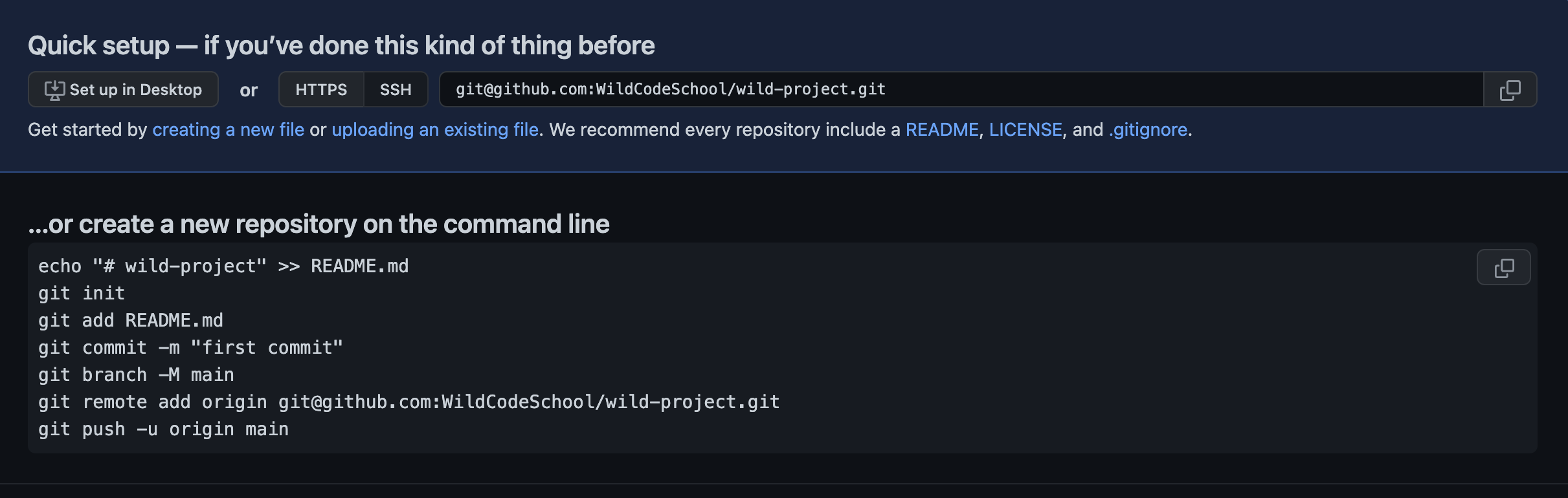
follow the commands listed on GitHub in **...or create a new repository on the command line**.
Be sure you checked SSH option, not HTTPS.
{: .alert-warning}
## Dale
Explain to Chip what he is doing in each step.
# These commands
## Chip
Give the link to the repository to Dale, and understand how to do clone it together on Dale's computer.
## Dale
Clone Chip's newly created repository by renaming the local target directory "wild-dale". Be careful, use :
```bash
git clone url_of_the_new_repository wild-dale
```
# Everyone
Open the project directory in your Code Editor.
{: .alert-info}
## Chip
Modify the README.md file by typing:
```markdown
# wild-project
How to install this project?
All we have to do for now is clone it.
```
## Dale
Watch what Chip does and pay attention.
## Chip
Create the file `another_file.html` in the project directory.
Add a comment inside the file:
```html
```
## Dale
Create the file `not_same_file.html` in the project folder.
Open the file and add a comment inside as well, it doesn't matter if it's the same or different.
## Chip
Look at what Dale is doing, try to understand what is happening in each step and what the result is.
## Dale
Create the file `secret_file.html` containing:
```html
```
Execute:
```bash
git status
```
Ignore the file `secret_file.html` by creating a `.gitignore` file (click here for more information) and adding the necessary instructions to it.
## Chip
Execute:
```bash
git status
```
## Dale
Execute:
```bash
git status
```
The `.gitignore` file should appear.
# Everyone
```bash
git add .
git status
git commit -m "Change me"
```
Replace `"Change me"` by an explicit message explaining what you've done, there are no limits, and you can press enter as long as you haven't closed the quotes.
{: .alert-info}
## Chip
Start pushing first:
```bash
git push
```
## Dale
Same for you, **after Chip**:
```bash
git push
```
## Chip
Everything went well for you.
## Dale
You've got an error message: what does the message say?
## Chip
Since you're the owner of the repository, you have to allow Dale to work on it...
Navigate to “Settings” > “Collaborators and team” and add Dale as a collaborator.
## Dale
You have to accept the invitation you should have received is in your mailbox. Then try again to push your commit to the online repository:
```bash
git push
```
## Chip
As "Risk Ranger", help Dale.
## Dale
You've got another error message! What does the message say?
Find the solution without searching the internet, just by reading the message in the console.
If you're really stuck, call your trainer for help!
{: .alert-info}
Once you fixed the problem, you can finally push:
```bash
git push
```
# Together
Check the update on GitHub. The `secret_file.html` file: is it there?
{: .alert-info}
## Chip
Do a `git pull` to get last changes made by Dale.
Then create a new branch from the current one:
```bash
git branch chip_branch
git switch chip_branch
```
Or directly:
```bash
git switch -c chip_branch
```
## Dale
Follow the same instructions as Chip, and create a new branch `dale_branch`.
## Chip
Create a `same_file.html` file and type a comment, i.e.:
```html
```
## Dale
Create a `same_file.html`` file and also type a comment inside it, but not the same as Chip!
# Everyone
```bash
git add .
git status
git commit -m "Change me"
```
## Chip
Publish your branch on GitHub using:
```bash
git push origin chip_branch
```
## Dale
Publish your branch on GitHub using:
```bash
git push origin dale_branch
```
## Chip
Create a pull request on GitHub from your branch `chip_branch` to `main` (Be careful with the direction).
Check if “able to merge” is displayed.
Add a description: “Explain what you modified and how to test it”.
## Dale
Watch what Chip is doing, and do the same with your branch (`dale_branch` to `main`)
## Chip
Look at what Dale is doing and help him if needed.
## Dale
Go on GitHub and go to your pull request.
Check if everything looks good and then click on the “Merge pull request” button.
🥳 Good Job ! You just successfully merge your first branch ! Now, you can see your work on the main branch.
{: .alert-info}
## Chip
Follow the same steps as Dale to validate your pull request and be able to merge your branch.
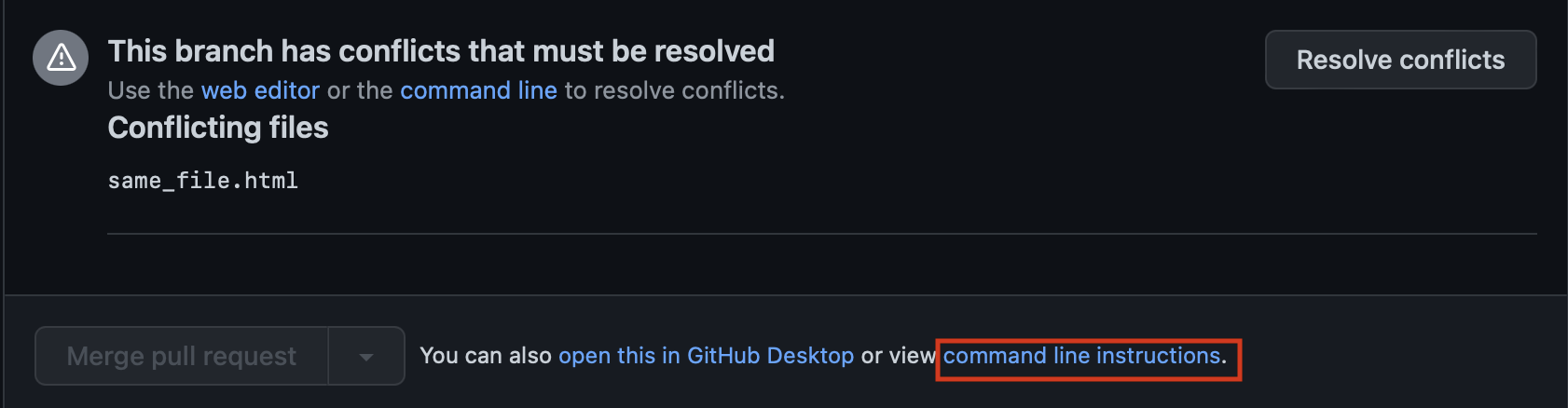
Damn ! There is a conflict ! You can see the message : “This branch has conflicts that must be resolved”.
{: .alert-warning}
## Dale
Look at what Chip does.
# Watch this together
## Chip
Instead of resolving the conflicts on GitHub like it is shown in the video, do it locally in your code editor.
On GitHub click on "command line instructions" as shown in the next image and follow the instructions. Don't forget to do some `git status` between every step and discuss about it with Dale.
## Dale
Look at what Chip is doing and help if needed (A second developper won't always be here to resolve the conflicts with you, so take the benefit of it !)
## Chip
Now that there is no more conflicts, go back to the pull request on GitHub, check if everything is good and click on the “Merge pull request” button.
## Dale
Watch what Chip does and help if needed.
# Together
You successfully resolved a merge conflict in a pull request, congratulations! 🥳
{: .alert-info}